

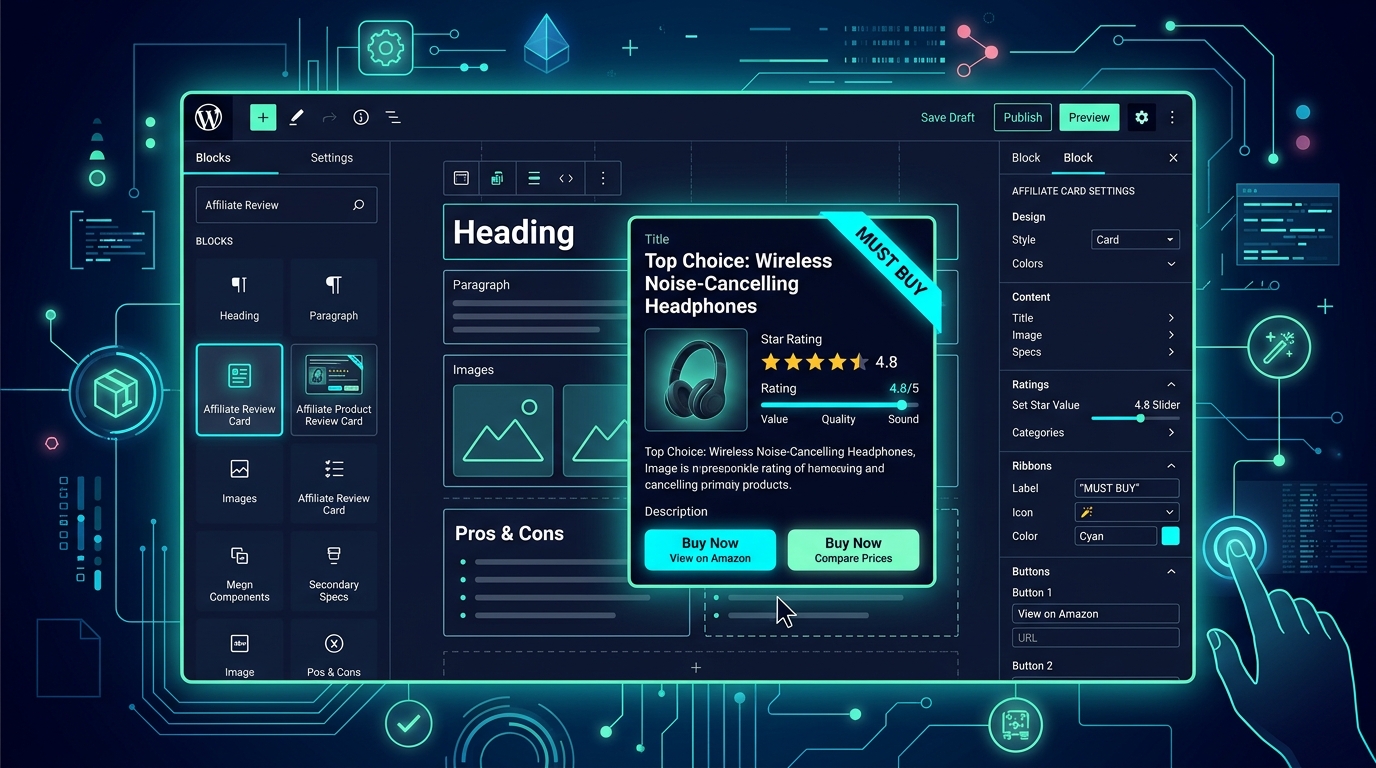
WordPress has completely transformed over the past few years. With the maturation of the Block Editor (Gutenberg) and Full Site Editing (FSE), modern site owners expect a visual, intuitive editing experience where what you see in the admin dashboard exactly matches what appears on the published website.
Yet, surprisingly, many affiliate bloggers remain trapped in the past—pasting obscure shortcodes like [affiliate_box id="982" button="buy"] or relying on slow, third-party iframe embeds. By adopting a modern Gutenberg affiliate blocks plugin, you unlock true WYSIWYG editing, faster publishing workflows, and responsive product boxes that look stunning on any screen.
In this step-by-step tutorial, we'll show you how to build a high-converting affiliate product box using AffiStyle, the lightweight WordPress affiliate product box plugin built natively for the block editor.
Why Native Gutenberg Blocks Beat Classic Shortcodes
- Real-Time Visual Feedback: Edit titles, tweak badge text, and preview button alignments directly in your writing flow. No more switching back and forth between "Save Draft" and "Preview Tab".
- Zero Database Overhead: Shortcodes execute regular expressions and dynamic queries every time a page is requested. Native Gutenberg blocks render pure semantic HTML directly on the server.
- Modular Block Settings: Gutenberg's contextual sidebar gives you instant control over ribbon colors, star rating sliders, stock status pills, and affiliate redirection links.
Step 1: Install & Activate AffiStyle
AffiStyle is completely free to get started directly from the official WordPress plugin repository:
- Log into your WordPress Admin Dashboard.
- Navigate to Plugins → Add New Plugin.
- Search for "AffiStyle".
- Click Install Now and then Activate.
Step 2: Insert the AffiStyle Review Card Block
Open any existing post or create a new article in the Block Editor. Click the "+" icon (Block Inserter) and type "AffiStyle". You will see three native blocks:
- AffiStyle Review Box: The classic single-product showcase with badge ribbon, star rating, pros/cons, and primary CTA.
- AffiStyle Versus Showdown: A side-by-side battle card comparing a "#1 Winner" vs a "Runner Up" pick.
- AffiStyle Multi-Retailer Selector: A tabbed card letting visitors choose between Amazon, Walmart, Best Buy, or direct merchant stores.
BaristaTouch Precision Espresso Machine
Commercial-grade 15-bar Italian pump, integrated conical burr grinder with 30 grind settings, and microfoam milk texturing wand.
Step 3: Auto-Populate via 0-API Quick-Fill
Once the block is inserted, you don't have to manually download images or retype product titles:
- Copy any public Amazon or merchant product URL.
- Paste it into the AffiStyle Quick-Fill input bar at the top of the block.
- Click Fetch. AffiStyle pulls the high-resolution product image, official title, and pricing data instantly—without requiring complex Amazon PA-API keys!
Step 4: Customize Badge Ribbons & Pros/Cons
In the right-hand Gutenberg block sidebar, you can fine-tune every visual conversion trigger:
- Ribbon Text & Color: Set tags like "Best Value", "Top Rated", or "Budget Pick" with custom gold, emerald, or cyan gradients.
- Star Rating Slider: Adjust the score from 1.0 to 5.0 with real-time SVG star rendering.
- Pros and Cons List: Add bullet points detailing key benefits and considerations.
- Automated Link Cloaking: Enter your affiliate link. AffiStyle automatically generates a clean 302 redirect slug (e.g.
/recommends/espresso-machine) withrel="nofollow sponsored noopener"enforced.
Step 5: Save as a Reusable Block Pattern
To speed up future content creation, you can save your customized card as a WordPress pattern:
- Select the AffiStyle block.
- Click the Options (three dots) menu on the block toolbar.
- Select Create Pattern.
- Name it "AffiStyle Review Card Template".
Now, any writer or editor on your team can drop your branded card into new posts in two clicks!
Frequently Asked Questions
Why are shortcodes bad for modern WordPress affiliate sites?
Shortcodes like [amazon box='...'] offer zero live visual feedback in the WordPress admin editor. They force publishers to constantly toggle between 'Preview' and 'Edit' modes. In addition, shortcodes often fail to adapt to Full Site Editing (FSE) block themes and execute unoptimized database queries on every page render.
Can I customize colors and fonts to match my active WordPress theme?
Yes. AffiStyle Gutenberg blocks inherit your active theme's typography scale and offer customizable color controls for borders, badges, buttons, and rating stars, allowing seamless visual harmony with any theme (GeneratePress, Astra, Kadence, etc.).
Can I save custom affiliate boxes as reusable block patterns?
Yes. Once you design a card layout you love in Gutenberg, click the three-dot block menu and select 'Create Pattern'. You can name it 'My Standard Review Box' and reuse it across hundreds of articles with 1 click.
Do I need coding or CSS knowledge to build product boxes?
Not at all. AffiStyle provides an intuitive visual sidebar in Gutenberg where you can toggle ribbons, adjust star sliders, enter price tags, and paste destination URLs with zero code required.